Key takeaways
- Display: 16-inch 2K touchscreen — high resolution for its class, suited to detailed retouching
- Processor: AMD Ryzen 3 30 series
- Memory: 8GB RAM
- Storage: 256GB SSD
- Graphics: AMD Radeon 610M integrated
- Form factor: Traditional clamshell laptop
Top 3 Picks
If you want the short answer: the Acer Aspire 2026 (Intel Ultra 7 258V, 32GB/1TB) is the best overall touchscreen laptop for photo editing here, because its combination of a high-refresh touch panel, 32GB of memory, and Intel Arc-class integrated graphics removes the two bottlenecks photographers hit first — RAM exhaustion during layered edits and a GPU that stalls on AI denoise or color grading. The HP 2026 15.6″ Touchscreen (Intel Ultra 5, 16GB DDR5) is the best balance of price and future-proofing for hobbyists editing 24MP files. The Tylvx 15.6″ 2-in-1 is the best budget entry point if you mainly retouch JPEGs and light RAW files in the browser or in a lightweight editor.
Top 3 Picks
Best overall — Acer Aspire 2026, Intel Ultra 7 258V, 32GB RAM + 1TB SSD. It pairs the largest memory pool in this roundup with a fast touchscreen and current-generation silicon, so it handles 45MP+ RAWs, multi-layer Photoshop documents, and GPU-accelerated features without the page-file thrashing that slows cheaper machines. Best for photographers who edit daily and expect to keep the laptop for three or more years.
Best mid-range — HP 2026 Touchscreen 15.6″ FHD+, 16GB DDR5, 512GB, Intel Ultra 5. DDR5 memory and a current Ultra 5 CPU mean the core editing experience is smooth; the 512GB drive is the one real compromise. Best for enthusiasts who shoot 24–33MP and edit a few times a week.
Best budget — Tylvx 15.6″ 2-in-1, Intel Core m3-8100Y, 20GB RAM, 512GB SSD. Unusually generous memory for the price and a 360° flip hinge that makes pen-based masking and retouching genuinely comfortable. Best for casual retouchers and students on a hard budget.
Quick Comparison
Every model below is a touchscreen machine; what separates them for photo work is memory, display quality, graphics class, and stylus behavior. Prices are given only as tiers because listing prices change daily.
| Product | Best for | Key specs | Price tier |
|---|---|---|---|
| HP OmniBook 3 16″ (2K Touch) | Large-canvas editing on a mid-range budget | 16″ 2K touchscreen; AMD Ryzen 3 30; 8GB RAM; 256GB SSD; AMD Radeon 610M | Mid-range |
| Acer Aspire 2026 (Ultra 7 258V) | Daily heavy RAW and multi-layer editing | Touchscreen; Intel Ultra 7 258V; 32GB RAM; 1TB SSD; Intel Arc-class integrated graphics | Premium |
| Tylvx 15.6″ 2-in-1 | Pen-based retouching on a tight budget | 15.6″ FHD touchscreen, 360° flip; Intel Core m3-8100Y up to 3.4GHz; 20GB RAM; 512GB SSD | Budget |
| HP 2026 Touchscreen 15.6″ FHD+ | Balanced all-rounder for hobbyist editing | 15.6″ FHD+ LED touchscreen; Intel Ultra 5; 16GB DDR5; 512GB SSD | Mid-range |
| Morostron 16″ Touchscreen | Big-screen browsing and catalog work cheaply | 16″ touchscreen; all-metal body; Intel N95 quad-core up to 3.4GHz; 16GB DDR4; 1TB SSD | Budget |
How We Chose
This roundup is built from published specifications and category knowledge, not from physical testing. We started with the criteria that actually determine whether a laptop feels good to edit photos on, then ranked the listed models against them.
The first filter was memory. Modern raw editors, multi-layer documents, and AI-assisted tools are memory-hungry, so 16GB was treated as the practical floor for serious editing and 32GB as the comfort zone. Storage came second: a 256GB drive fills quickly once you keep a working catalog on the machine, while 1TB buys years of headroom. Third was graphics class — integrated graphics still matter because denoise, lens correction, and color operations are GPU-accelerated.
We then looked at the display: size, resolution, and touch behavior, because a touchscreen is only useful for photo work if the panel is good enough that you would want to edit on it even without touch. Pen support was weighted by hinge type, since a 360° convertible makes stylus masking far more natural than a clamshell. Finally, we considered upgrade path and category fit — whether the machine suits a student retoucher, a working hobbyist, or someone editing daily — so each pick maps to a real workload rather than to a spec sheet.
1. HP OmniBook 3 16″ – Best for Large-Canvas Editing on a Mid-Range Budget
As an Amazon Associate we earn from qualifying purchases at no extra cost to you.
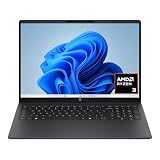
The HP OmniBook 3 16″ is the pick here for photographers who want the most screen real estate per dollar and are willing to trade raw speed for it. A 16-inch 2K touchscreen is a genuinely useful editing surface: at 2K resolution on a 16-inch diagonal, you get enough pixel density to judge sharpening and noise without zooming constantly, and enough physical area to keep your histogram, layers panel, and a large preview visible at once.
Key Specs
- Display: 16-inch 2K touchscreen — high resolution for its class, suited to detailed retouching
- Processor: AMD Ryzen 3 30 series
- Memory: 8GB RAM
- Storage: 256GB SSD
- Graphics: AMD Radeon 610M integrated
- Form factor: Traditional clamshell laptop
Strengths
The headline advantage is the panel. A 2K resolution on a 16-inch screen gives you a working canvas closer to a small desktop monitor than to a typical 15.6-inch FHD laptop, and for editing that matters more than almost any other single spec. The Ryzen 3 30-series CPU handles ordinary develop-module work — exposure, white balance, tone curves, lens corrections — without drama, and the Radeon 610M graphics core is enough to accelerate basic GPU-accelerated operations.
The 16-inch chassis also means a bigger keyboard deck and typically a larger battery than a 14-inch machine, which helps on long culling sessions away from a desk. For a mid-range tier, the OmniBook 3 gives you a display that punches above its price class.
Pros
- 16-inch 2K touchscreen is the best editing canvas in this roundup per dollar
- Large chassis means comfortable keyboard and room for ports
- Integrated Radeon graphics handles standard develop-module acceleration
- HP’s service network and driver support are broadly available
- Mid-range price tier keeps it accessible for a first serious editing machine
Cons
- 8GB RAM is the tightest constraint — heavy multi-layer work will swap to disk
- 256GB SSD fills fast if you keep a working catalog on the machine
- Ryzen 3 tier means batch exports and AI denoise run slower than Ultra-class chips
- Clamshell hinge limits comfortable stylus use
- Not a machine you would choose for 45MP+ raw workflows
Compared With the Nearest Alternative
Against the HP 2026 15.6″ FHD+ (Intel Ultra 5, 16GB DDR5), the OmniBook 3 wins clearly on display and loses clearly on everything compute-related. The HP 2026 gives you double the memory and a newer CPU platform, which matters the moment you open a dozen layers or run AI denoise. Choose the OmniBook 3 if your priority is a big, sharp canvas for careful retouching of moderate files; choose the HP 2026 if you edit frequently and want the machine to stay responsive as your library and file sizes grow. A practical middle path: buy the OmniBook 3 and plan a storage upgrade, or accept a smaller screen and buy the HP 2026 for more headroom. Neither is the right answer for 45MP shooters — that is the Acer’s territory.
2. Acer Aspire 2026 (Intel Ultra 7 258V) – Best for Daily Heavy RAW and Multi-Layer Editing

The Acer Aspire 2026 with the Intel Ultra 7 258V, 32GB of RAM, and a 1TB SSD is the most capable touchscreen laptop on this list, and the only one that comfortably clears the bar for professional-adjacent editing workloads. If you shoot 45MP or higher, keep large Photoshop or Affinity documents open, or run AI denoise and upscaling regularly, this is the machine that will not make you wait.
Key Specs
- Display: Touchscreen panel (see listing for exact size and resolution)
- Processor: Intel Core Ultra 7 258V — current-generation, high-efficiency architecture
- Memory: 32GB RAM — the largest pool in this roundup
- Storage: 1TB SSD
- Graphics: Intel Arc-class integrated graphics
- Tier: Premium
Strengths
Memory is the single most important spec for photo editing, and 32GB changes what you can do. You can keep a raw editor, a catalog, a browser with reference images, and a layered document open simultaneously without the machine reaching for the page file. That eliminates the stutter that defines the experience on 8GB and even 16GB machines once documents get complex.
The Ultra 7 258V is a current-generation part built on an efficiency-focused architecture, which in practice means strong single-thread performance for interactive editing plus better battery behavior than older high-power chips. Its Intel Arc-class integrated graphics are a meaningful step up from entry-level integrated solutions, and they accelerate GPU-dependent operations such as AI denoise, lens corrections, and color-space conversions. The 1TB SSD means you can keep a substantial working catalog local rather than shuffling drives mid-project, and the touchscreen adds pen-friendly masking and quick culling gestures on top.
Pros
- 32GB RAM removes the biggest editing bottleneck entirely
- Ultra 7 258V delivers current-generation CPU performance with good efficiency
- Arc-class integrated graphics accelerate denoise, corrections, and color work
- 1TB SSD gives real working headroom for large catalogs
- Touchscreen adds practical value for brushing, masking, and culling
Cons
- Premium price tier — the most expensive approach on this list
- Integrated graphics still trail discrete GPUs for the heaviest AI workloads
- Check the listing for exact screen size and resolution before buying
- Overkill if you only edit occasional JPEGs or small raw files
Compared With the Nearest Alternative
The nearest competitor is the HP 2026 15.6″ FHD+ (Intel Ultra 5, 16GB DDR5). Both use current-generation Intel silicon, so day-to-day interactive editing feels similar on small files. The difference appears the moment your workload scales: the Acer’s 32GB of memory and 1TB of storage absorb multi-layer documents and large catalogs that would force the HP to swap and stall. The Acer is the correct choice if you edit daily, work with high-resolution files, or plan to keep the machine for several years as your library grows. The HP is the smarter buy if your editing is occasional and your files stay in the 24MP range — you would be paying a premium for capability you never use. If budget is a hard constraint, the Tylvx and Morostron options cost far less but require you to accept a very different performance ceiling.
3. Tylvx 15.6″ 2-in-1 – Best for Pen-Based Retouching on a Tight Budget

The Tylvx 15.6″ 2-in-1 is the most interesting value proposition in this roundup because it solves a problem most budget laptops ignore: it actually converts. A 360° flip hinge turns it into a tablet-like surface, which is the configuration in which stylus work — masking, dodging and burning, spot healing, painting layer masks — stops feeling awkward. Pair that with 20GB of RAM and a 512GB SSD at a budget tier and you have a machine that does a specific job well.
Key Specs
- Display: 15.6-inch FHD touchscreen with 360° flip convertible hinge
- Processor: Intel Core m3-8100Y, up to 3.4GHz
- Memory: 20GB RAM
- Storage: 512GB SSD
- Form factor: 2-in-1 laptop/tablet convertible
- Tier: Budget
Strengths
The convertible hinge is the reason to buy this machine. When you fold it flat, a 15.6-inch screen becomes a large drawing surface for brush-based retouching, and the extra memory — 20GB is generous at this price — means moderately complex edits do not immediately bog down. The 512GB SSD is double what you typically get at the budget tier, which gives you room for a working catalog rather than forcing constant offloading.
The Core m3-8100Y is an older, low-power part, but it is important to be clear about what it can and cannot do. It is fine for interactive work: moving sliders, brushing masks, adjusting tone curves, culling and rating images. It is not built for batch processing dozens of raw files or running heavy AI operations. The practical framing is that this machine handles the tactile, iterative side of editing very well and the compute-heavy side slowly.
Pros
- 360° flip hinge makes stylus retouching genuinely comfortable
- 20GB RAM is unusually generous for a budget machine
- 512GB SSD gives real storage headroom at this tier
- FHD 15.6-inch touchscreen is large enough for comfortable editing
- Lowest cost of entry for convertible pen work
Cons
- Core m3-8100Y is an older, low-power CPU — slow exports and batch work
- Integrated graphics of this generation offer limited acceleration for AI features
- FHD resolution on 15.6 inches is modest for pixel-level judging
- Budget-tier panel means color accuracy should be verified before trusting it for print
- Not suitable as a primary machine for high-volume professional editing
Compared With the Nearest Alternative
Its closest competitor is the Morostron 16″ Touchscreen (Intel N95, 16GB DDR4, 1TB SSD). These two budget machines split the decision cleanly. The Morostron gives you a bigger 16-inch screen, an all-metal body, and double the storage at 1TB, but it is a conventional clamshell — no flip hinge, so no comfortable tablet mode for stylus work. The Tylvx gives you 20GB of memory and a convertible hinge but only 512GB of storage and an older CPU. If your editing is brush-heavy — portraits, product retouching, composite work — take the Tylvx. If your editing is catalog-driven and you mostly cull, rate, and do light global adjustments on a big screen, take the Morostron. Photographers who need both pen comfort and a fast CPU should look at the Acer instead; the jump in capability is substantial.
4. HP 2026 Touchscreen 15.6″ FHD+ – Best for Balanced Everyday Photo Editing

The HP 2026 Touchscreen 15.6″ is the sensible middle of this roundup. It pairs a current-generation Intel Core Ultra 5 processor with 16GB of DDR5 memory and a 512GB SSD, which is exactly the combination that makes everyday photo editing feel effortless without paying for headroom you will not use. If you shoot in the 24–33MP range and edit a few times a week, this is the machine that hits the sweet spot.
Key Specs
- Display: 15.6-inch FHD+ LED touchscreen
- Processor: Intel Core Ultra 5 (current generation)
- Memory: 16GB DDR5
- Storage: 512GB SSD
- Form factor: Traditional clamshell laptop
- Tier: Mid-range
Strengths
DDR5 memory is the detail worth pausing on. It is not just a capacity question — DDR5 offers higher bandwidth than DDR4, which helps when your editor is streaming large raw files and moving big pixel buffers around. Combined with a current-generation Ultra 5 CPU, this makes interactive editing smooth in a way that older mid-range machines are not. Slider moves register immediately, previews render quickly, and switching between images in a catalog is snappy.
The FHD+ panel is a step above standard FHD, giving slightly more vertical working space for toolbars and panels — a small but real quality-of-life improvement on a 15.6-inch screen. The touchscreen adds practical gestures for culling and light brushing, and the 512GB SSD is adequate for a working catalog if you archive completed projects to external storage. HP’s broad service network and driver support are a genuine ownership advantage over lesser-known brands.
Pros
- 16GB DDR5 delivers higher memory bandwidth than DDR4 equivalents
- Current-generation Ultra 5 CPU handles interactive editing comfortably
- FHD+ panel gives extra vertical space over standard FHD
- 512GB SSD is workable for an active catalog with archiving discipline
- Strong brand support and driver availability
Cons
- 16GB RAM becomes a real limit with very large layered documents
- 512GB SSD is the smallest sensible capacity — plan external archiving
- Clamshell design means no comfortable tablet mode for stylus work
- Integrated graphics handle AI denoise much more slowly than discrete GPUs
- Not the right pick for 45MP+ files or daily professional volume
Compared With the Nearest Alternative
Against the HP OmniBook 3 16″ (2K, 8GB, 256GB), this is a straightforward trade of screen for silicon. The OmniBook 3 gives you a larger 16-inch 2K panel and a bigger editing canvas; the HP 2026 gives you double the memory, newer memory technology, a more current CPU, and double the storage. For most photographers, memory and storage matter more to daily experience than an extra 0.4 inches of diagonal and a resolution bump — you feel RAM pressure every session, but you only notice screen size when comparing side by side. Compared with the Acer Aspire 2026, the HP 2026 gives up 16GB of RAM, half the storage, and a tier of CPU performance for a substantial saving. The right call: buy the HP 2026 if you edit weekly on moderate files; stretch to the Acer if you edit daily or shoot high-resolution.
5. Morostron 16″ Touchscreen – Best for Big-Screen Catalog Work on a Budget

The Morostron 16-inch touchscreen laptop takes a different approach to the budget tier than the Tylvx: instead of a convertible hinge, it leans into a large screen, an all-metal chassis, and a big 1TB SSD. For photographers whose workflow is catalog-centric — importing, culling, rating, keywording, and applying light global adjustments across hundreds of images — the combination of a 16-inch display and substantial storage at a budget price is appealing.
Key Specs
- Display: 16-inch touchscreen
- Chassis: High-end all-metal body
- Processor: Intel N95 quad-core, up to 3.4GHz
- Memory: 16GB DDR4
- Storage: 1TB SSD
- Tier: Budget
Strengths
The 1TB SSD is the standout spec. At the budget tier, storage is usually the first thing manufacturers cut, and a 1TB drive means you can keep a large working catalog on the machine without immediately budgeting for external drives. For photographers who shoot a lot and cull slowly, that is worth more than a faster CPU in daily use.
The all-metal body is also a meaningful ownership advantage. Metal chassis tend to resist flex better, dissipate heat more evenly, and hold up better over years of transport than plastic shells — relevant if the laptop lives in a bag and gets opened and closed several times a day. The 16-inch touchscreen gives you a large surface for grid views and side-by-side comparison, which is where culling sessions actually happen. The N95 quad-core is a modest processor suited to light editing: global adjustments, exposure and color corrections, cropping, and catalog management are all comfortable.
Pros
- 1TB SSD is exceptional storage for a budget laptop
- All-metal chassis improves durability and heat behavior
- 16-inch touchscreen is great for culling and comparison views
- 16GB DDR4 is adequate for light-to-moderate editing
- Large-screen workflow at the lowest possible cost
Cons
- Intel N95 is a low-power chip — slow exports and batch processing
- DDR4 memory offers less bandwidth than DDR5 machines here
- No convertible hinge, so stylus work is less comfortable
- Integrated graphics limit acceleration for AI-based tools
- Budget panels often need calibration checks before trusting color
Compared With the Nearest Alternative
The nearest alternative is the Tylvx 15.6″ 2-in-1 (20GB RAM, 512GB SSD), and the split is clean. The Morostron gives you a bigger screen, double the storage, and a metal body; the Tylvx gives you more memory, a convertible hinge for pen work, and a slightly smaller screen. Neither CPU is built for heavy lifting, so the decision should rest on workflow shape rather than benchmarks. If you spend most of your editing time culling and rating on a large grid, take the Morostron. If you spend it brushing masks and retouching with a stylus, take the Tylvx. If you need both — a big screen and speed — neither budget machine will satisfy you, and the HP 2026 15.6″ FHD+ at the mid-range tier is the more honest upgrade path.
How to Choose
Choosing a touchscreen laptop for photo editing comes down to matching five specs to your actual workload. Here is how to reason about each, with the concrete thresholds that matter.
Memory: The Spec That Decides Everything
RAM is the first thing to get right, because it is the hardest to fix later and the most common source of frustration. The practical thresholds:
- 8GB: Workable for editing single JPEGs and small raw files with a couple of layers. You will see slowdowns the moment you open several images at once or add adjustment layers. Acceptable only if you edit occasionally.
- 16GB: The realistic floor for serious hobbyist editing. Handles 24–33MP raw files, moderate layer stacks, and typical catalog browsing without constant disk swapping.
- 20GB: A small but useful cushion over 16GB, most often seen on budget machines. Enough for brush-heavy retouching sessions on moderate files.
- 32GB: The comfort zone for 45MP+ files, large multi-layer documents, and AI-assisted tools. If you edit daily and never want to think about memory again, this is the target.
Also consider the memory type. DDR5 offers higher bandwidth than DDR4, which helps when your editor streams large raw files and moves big pixel buffers. It is a secondary factor behind capacity, but between two otherwise equal machines, take the DDR5 one.
Storage: Capacity and Where Your Catalog Lives
A raw-heavy library consumes far more space than most people expect. A single 45MP raw file can run 40–60MB; a thousand of them occupy roughly 40–60GB before you add previews, catalogs, exports, and layered working files, which can each be several hundred megabytes. Practical guidance:
- 256GB: Tight. Enough for the operating system, applications, and a small working set. You will need external storage almost immediately.
- 512GB: Adequate for an active catalog if you archive completed projects to external drives on a schedule.
- 1TB: Comfortable. You can keep a large working catalog plus application data local and defer the external-drive decision for a year or more.
The workflow rule that matters more than raw capacity: keep your catalog and previews on the internal SSD for speed, and archive finished projects to external storage. Catalogs are database files that benefit enormously from fast storage, while completed exports and originals you rarely revisit do not.
Processor: Match the Chip to Your Batch Size
Processor choice matters most for batch operations — exporting hundreds of files, applying edits across a shoot, running AI denoise — and least for interactive slider work, which feels similar across most modern chips. The tiers in this roundup map roughly like this:
- Low-power quad-core (Intel N95, Core m3 tier): Fine for interactive editing, culling, and light global adjustments. Expect batch exports and AI features to be slow. Suitable for casual and student use.
- Entry standard-voltage (AMD Ryzen 3 tier): A step up for everyday develop-module work. Better sustained performance than low-power parts.
- Current-generation mid-tier (Intel Core Ultra 5): The sweet spot for regular hobbyist editing. Strong single-thread responsiveness with reasonable efficiency.
- Current-generation high-tier (Intel Core Ultra 7): The right choice for daily heavy editing, large batches, and high-resolution files.
One nuance worth knowing: newer generations of chips are often more efficient rather than dramatically faster than their predecessors, and efficiency shows up as better battery life and cooler operation during long editing sessions — real benefits even if benchmarks look similar.
Display: Size, Resolution, and Why Both Matter
For photo editing, screen size and resolution do different jobs. Size determines how much of your workspace you can see at once — image, histogram, layers, and navigator. Resolution determines how finely you can judge detail without zooming. Approximate guidance:
- 15.6-inch FHD: The baseline. Workable, but you will zoom to judge sharpening and noise.
- 15.6-inch FHD+: Slightly more vertical working space, which reduces panel clutter.
- 16-inch 2K: A meaningful upgrade in both dimensions — more canvas and finer detail rendering.
Brightness matters too, particularly if you edit in a room with uncontrolled light. Panels around 300 nits are typical for mainstream laptops; higher-brightness panels let you work confidently near windows or in bright rooms. Whatever you buy, budget for a calibration device or at minimum verify color accuracy against a known reference — this is where budget panels most often fall short, and it is the single most impactful quality step for print work.
Graphics: Integrated Is Fine, Until It Is Not
Every machine in this roundup uses integrated graphics, which is normal at these price tiers and generally adequate. Integrated graphics accelerate lens corrections, color-space conversions, and basic GPU-accelerated operations well. Where they struggle is heavy AI workloads — denoise, upscaling, subject and sky selection on high-resolution files — where a discrete GPU would be several times faster. Within integrated graphics, newer generations such as Intel Arc-class solutions are meaningfully better than entry-level parts from earlier generations. If AI features are central to your workflow, prioritize a newer integrated GPU or step up to a machine with discrete graphics.
Stylus Support and Hinge Type
Touch alone is a convenience feature for culling and gestures. Pen support is a workflow feature — it changes how masking, cloning, and dodging and burning feel. The catch is that pen comfort depends heavily on form factor:
- Clamshell: Pen use is possible but awkward; you are reaching across a keyboard.
- 360° convertible: Folds flat into a drawing surface. This is the configuration that makes stylus retouching natural.
If brush-based retouching is a significant part of your work, a convertible is worth prioritizing over a slightly faster conventional laptop. If your editing is mostly global adjustments, a clamshell is fine and usually cheaper for the same specs.
Decision Matrix: Match Your Situation to a Machine
| Your situation | Priority specs | Best fit here |
|---|---|---|
| Casual editing, JPEGs and small raws, tight budget | 16–20GB RAM, 512GB+, convertible if pen matters | Tylvx 15.6″ 2-in-1 |
| Catalog-heavy culling on a large screen, budget limited | 16GB RAM, 1TB storage, 16-inch panel | Morostron 16″ |
| Weekly editing, 24–33MP files, mid-range budget | 16GB DDR5, current-gen CPU, 512GB+ | HP 2026 15.6″ FHD+ |
| Want the biggest editing canvas per dollar | 16-inch 2K panel; accept 8GB and 256GB | HP OmniBook 3 16″ |
| Daily editing, 45MP+, multi-layer documents | 32GB RAM, 1TB SSD, newest CPU and GPU | Acer Aspire 2026 |
Ownership Realities: What Wears First
Over a three-to-five-year life, a few things predictably degrade or become limiting before the machine actually fails:
- Storage fills first. Almost every editing laptop runs out of drive space long before it runs out of CPU. Choose at least one tier of storage above your current need, or plan external archiving from day one.
- Memory becomes limiting second. As editors add features and your files get larger, an 8GB machine that felt fine in year one feels constrained by year two. This is the strongest argument for buying one memory tier above your present requirement.
- Battery capacity declines with cycle count. Editing sessions are power-hungry, and a machine that ran three hours on battery new may run under two after a couple of years of daily use. Plan on desk power for long sessions.
- The hinge is the mechanical weak point on convertibles, since it cycles every time you fold the machine. Treat the fold as a deliberate action rather than a casual flip.
- Panels drift in color over time. Recalibrate periodically if color accuracy matters to your output; this is maintenance, not repair.
Common mistakes worth avoiding: buying 8GB because the price looks attractive and planning to “upgrade later” (memory in most thin laptops is soldered and not user-upgradable); judging a laptop by its CPU alone while ignoring memory and storage; and trusting an uncalibrated budget panel for print work without verifying color first.
Frequently Asked Questions
Is a touchscreen actually useful for photo editing, or just a gimmick?
It is genuinely useful in two situations: culling and rating images with swipe gestures, and brush-based retouching with a stylus. For pure slider work, a mouse or trackpad remains more precise. The value of touch depends almost entirely on whether you use a pen — without one, it is a convenience feature rather than a workflow change.
How much RAM do I really need for photo editing?
16GB is the practical floor for serious hobbyist editing with 24–33MP raw files, and 32GB is the comfort zone for 45MP+ files, large multi-layer documents, and AI-assisted tools. 8GB is workable only for occasional editing of small files, and it will feel constrained as your library grows.
Can I edit photos on integrated graphics instead of a discrete GPU?
Yes, for most editing tasks. Integrated graphics handle interactive slider work, lens corrections, and color operations well. They are notably slower for AI denoise, upscaling, and large marquee selections on high-resolution files. If those AI features are central to your workflow, prioritize the newest integrated GPU you can afford — newer generations such as Intel Arc-class solutions are significantly better than older entry-level parts.
Do I need a 4K screen for photo editing?
No. A 2K panel on a 16-inch screen gives you plenty of detail for judging sharpening and noise, and higher resolution costs battery life and money. What matters more than resolution is color accuracy and brightness — an accurate 2K panel beats an uncalibrated higher-resolution one for print work.
Is 512GB of storage enough for a photo library?
It is enough for an active working catalog if you archive completed projects to external storage on a regular schedule. Raw files are large — a thousand 45MP files can occupy 40–60GB before previews and layered working files — so treat the internal drive as working space, not an archive.
How long should a touchscreen editing laptop last?
Five years of useful life is a reasonable expectation if you buy at least one tier above your current needs in memory and storage. Storage fills and memory becomes limiting long before the processor does, so those two specs determine how long the machine stays comfortable.
Should I buy a convertible 2-in-1 or a regular clamshell for editing?
Choose a convertible if you plan to use a stylus for masking and retouching, because folding flat turns the screen into a natural drawing surface. Choose a clamshell if your editing is mostly global adjustments — you will typically get more memory and processing power for the same money.
Do budget touchscreen laptops have accurate enough colors?
Not reliably, and this is the most common shortfall at the budget tier. Color accuracy varies widely between panels. If your output goes to print or to a client, budget for a calibration device or verify the panel against a known reference before trusting it. For screen-only, casual use, an uncalibrated panel is usually acceptable.
The Bottom Line by Situation
If you edit daily, work with high-resolution files, or keep large multi-layer documents open, buy the Acer Aspire 2026 — its 32GB of memory and 1TB SSD are what make it feel effortless, and no other machine here matches that headroom. If you edit a few times a week on 24–33MP files, the HP 2026 15.6″ FHD+ gives you current-generation silicon and DDR5 memory for a much lower outlay, and it is the most sensible default for most enthusiasts. If your first priority is a large, sharp editing canvas on a mid-range budget, the HP OmniBook 3 16″ delivers the best display per dollar — just plan for external storage and accept the 8GB memory ceiling. If you retouch with a stylus and need to keep costs down, the Tylvx 15.6″ 2-in-1 is the only budget machine here that folds flat, making pen work comfortable. And if your workflow is big-screen culling with a large local catalog, the Morostron 16″ pairs a 16-inch panel with 1TB of storage at the lowest tier. Match the memory and storage to where your library is heading in two years, not where it is today, and any of these will serve you well.