Our Top Picks


A laptop camera can make a work call feel distant and flat. Faces look soft, rooms look dark, and every small movement turns into a blur. A dedicated camera for video calls fixes that. It puts a larger sensor, a better lens, and smarter light handling in front of you, so colleagues see your expressions clearly and hear your voice without strain.


This guide focuses on calls, not on broadcast production. A broadcast camera may chase cinematic depth of field and interchangeable lenses. A camera built for Zoom, Google Meet, and Microsoft Teams needs different strengths: quick connection, steady autofocus, natural color, and usable audio for a small room. The five picks below were chosen for those everyday meeting needs, and each one works as a normal USB webcam with the meeting software most people already use.
As an Amazon Associate, we earn from qualifying purchases.
How to Choose a Camera for Video Calls
Resolution gets the most attention, yet it is only one part of the picture. A 4K sensor captures fine detail in hair, glasses, and clothing, and it gives meeting software more information to work with when it crops the frame. That extra detail is most useful when you present slides or sit a little farther from the screen. A well tuned 1080p camera can still look excellent when its sensor handles light well and its autofocus stays locked on your face. Motion matters too. A camera that records 1080p at 60 frames per second makes gestures look natural, while 4K at 30 frames per second looks sharper when you sit still.
Autofocus keeps your face sharp when you lean in to read a note or lean back to think. Low light handling matters too: a larger sensor gathers more light and keeps skin tones natural in a dim room, while HDR helps when a bright window sits behind you. For audio, built in microphones with noise reduction suit a quiet home office, but a camera without a microphone needs a headset or a desk microphone. For privacy, a physical shutter, a lens cover, or a camera that tilts its lens down when idle gives a clear sign the lens is closed. Finally, plug and play cameras work the moment you connect the cable, while software controlled cameras add manual exposure and tracking at the cost of another app to learn.
1. Logitech Brio 4K
The Logitech Brio 4K is the dependable all rounder here, and it suits people who want a sharp image without learning a new control panel. It records 4K at 30 frames per second, 1080p at 60 frames per second, and 720p at up to 90 frames per second, so you can trade detail for smoothness depending on the call. Autofocus works quickly, and the 5x digital zoom lets you tighten the frame when a wide view shows too much of the room. RightLight 3 light correction adjusts brightness and contrast on its own.
Three field of view settings, at 65, 78, and 90 degrees, control how much of the room appears in the frame. Dual microphones with noise reduction pick up a voice clearly in a quiet room, so many callers will not need a separate microphone for short meetings. Windows Hello facial recognition is built in for Windows users. The Brio connects over USB and works with Zoom, Meet, and Teams without a driver install on most systems. Its honest limitation is the lack of a built in privacy shutter, so keep a small clip on cover handy or unplug the cable when the call ends.
Specs
- 4K at 30 fps, 1080p at 60 fps, 720p at 90 fps; autofocus with 5x digital zoom; RightLight 3 light correction; dual noise reducing microphones; field of view 65, 78, or 90 degrees; Windows Hello facial recognition; USB connection; works with Zoom, Meet, and Teams.
2. Elgato Facecam Pro
The Elgato Facecam Pro is the pick for callers who want the most detail and the most manual control. It records true 4K at 60 frames per second, which keeps motion smooth while holding onto fine detail in faces, clothing, and printed notes held up to the lens. A large Sony sensor gathers light well, so the image stays clean in rooms that would make a smaller sensor look grainy. Autofocus is fast and confident, and the wide angle lens covers a desk or a small meeting area without forcing you to sit close to the screen.
Camera Hub software is where this camera earns its keep. It offers manual control over shutter speed, ISO, white balance, contrast, saturation, and sharpness, along with presets you can save for different rooms or times of day. The trade off is that the Facecam Pro has no built in microphone, so you will need a headset, a desk microphone, or a laptop microphone for audio. It also has no built in privacy shutter, so a lens cap or unplugging the cable is the practical answer when the call ends.
Specs
- True 4K at 60 fps; Sony sensor; autofocus; wide angle lens with 90 degree field of view; manual exposure, ISO, and white balance in Camera Hub software; USB-C connection; no built in microphone; works with Zoom, Meet, Teams, and OBS.
3. OBSBOT Tiny 2
The OBSBOT Tiny 2 is the most active camera in this group, because it moves with you. A two axis gimbal lets the lens pan and tilt to follow your movement, and AI tracking keeps you centered when you stand up, walk to a whiteboard, or shift to a second chair. That freedom changes how a call feels for teachers, trainers, and presenters who do not want to stay pinned to one spot. Voice control and gesture control add hands free options, so you can widen the shot or lock the tracking without touching the keyboard mid talk.
Image quality is strong as well. A 1/1.5 inch CMOS sensor is large for a webcam, and it supports 4K at up to 60 frames per second with HDR light correction. Autofocus is quick, and the camera handles mixed light better than many smaller webcams. Dual microphones with AI noise reduction pick up a voice clearly while softening keyboard taps and room hum. It connects over USB-C, while OBSBOT Center software unlocks tracking modes and presets. When idle, the camera tilts down into a sleep position, a visible sign that the lens is not aimed at the room.
Specs
- 4K at up to 60 fps; 1/1.5 inch CMOS sensor; two axis PTZ gimbal with AI tracking; autofocus; HDR light correction; dual noise reducing microphones; voice and gesture control; USB-C connection; sleep position tilts the lens down.
4. Insta360 Link
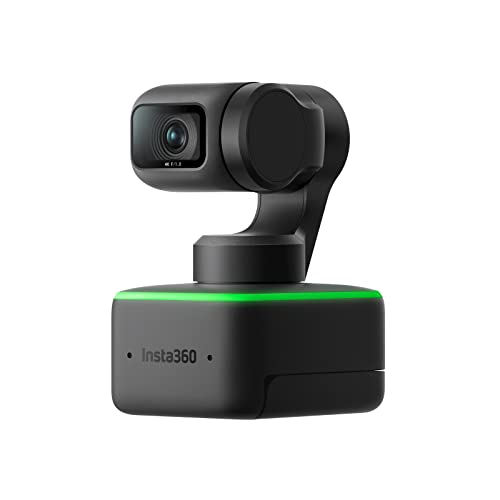
The Insta360 Link is a compact PTZ webcam for people who want tracking and gesture control in a small, quiet package. It records 4K at 30 frames per second and 1080p at 60 frames per second, using a 1/2 inch sensor with phase detection autofocus. AI tracking follows you around the room, and a simple hand gesture can zoom the frame or lock the tracking without a mouse click.
HDR helps in rooms with a bright window behind the desk, and the dual noise canceling microphones pick up a voice clearly while softening background sound. The camera mounts on a monitor with a sturdy clip, and it also fits a standard tripod thread. Link Controller software offers framing presets, exposure control, and modes for a desk view or a whiteboard. Privacy is handled by a neat physical cue: when not in use, the lens tilts down, so you can see at a glance that it is not aimed at you. The Link is certified for Zoom, and it works with Meet and Teams as a standard USB webcam.
Specs
- 4K at 30 fps, 1080p at 60 fps; 1/2 inch sensor; phase detection autofocus; two axis gimbal with AI tracking; HDR; dual noise canceling microphones; gesture control; lens tilts down for privacy; USB-C connection; Zoom certified.
5. Razer Kiyo Pro
The Razer Kiyo Pro is the low light specialist in this group, and it is the best fit when your room is dim or your calls land after dark. An adaptive light sensor adjusts exposure on the fly, and HDR support keeps bright and dark areas in balance, so a face lit by a single lamp does not turn into a washed out patch or a dark shape. It records 1080p at 60 frames per second, which keeps gestures smooth while the sensor focuses on clean, natural color.
Autofocus is quick and steady, and the adjustable field of view can be set to 80, 90, or 103 degrees, so you can frame one person tightly or include a second person at the edge of the desk. A built in microphone handles short calls in a quiet room, and the camera connects over USB 3.0 for a stable, low delay feed. Razer Synapse software offers manual control over focus and image settings, but the defaults work well for a normal meeting. There is no built in privacy shutter, so a small cover or unplugging the cable is the practical habit when the call ends.
Specs
- 1080p at 60 fps; adaptive light sensor with HDR; autofocus; adjustable field of view 80, 90, or 103 degrees; built in microphone; USB 3.0 connection; Razer Synapse software control; works with Zoom, Meet, and Teams.
Calls Versus Streaming: What Changes
A streaming setup often chases a cinematic look, with a shallow depth of field and a camera that can run for hours. A call setup rewards reliability, quick connection, and a natural look at a normal desk distance. Meeting tools compress video and crop the frame, so a camera that looks superb in a controlled studio can still look ordinary on a call if its autofocus hunts or its exposure shifts with every head turn. That is why the picks above favor steady autofocus, sensible exposure, and usable audio over exotic features. Choose the camera that matches how you actually spend your calls, not the one with the longest feature list.
Setting Up Your Camera for Better Calls
Place the lens at eye level, or just above it, so the other side sees your face straight on rather than from below. A stack of books under a monitor or a small tripod can lift a webcam to the right height in a minute. Sit facing a window or a lamp, with the light falling on your face, and avoid a bright window directly behind you, because the camera will expose for the window and leave your face dark.
Test the camera before an important call. Open the meeting tool, check the framing, and speak a few sentences to confirm the microphone picks you up clearly. Keep the background tidy, and keep the lens clean with a soft cloth once a week.
Frequently Asked Questions
Do I need a 4K camera for video calls?
No, a 4K camera is helpful but not required for most calls. Meeting tools compress video heavily, so a clean 1080p camera with good light handling and steady autofocus can look excellent. Choose 4K when you present fine detail or want extra sharpness for recorded meetings.
Can I use one of these cameras with Zoom, Google Meet, and Microsoft Teams?
Yes, all five cameras in this guide work as standard USB webcams with Zoom, Google Meet, Microsoft Teams, and similar meeting tools. Connect the cable, select the camera in the meeting app settings, and test the video and audio before the call begins.
Do these cameras have a microphone, or do I need a separate one?
Four of the five picks have a built in microphone that suits a quiet room and a normal meeting. The Elgato Facecam Pro has no built in microphone, so it needs a headset, a desk microphone, or a laptop microphone. For long calls or a noisy room, a headset or a separate microphone will sound clearer than any built in webcam microphone.
How do I keep my camera private when I am not on a call?
Use the physical option your camera offers, such as a built in shutter, a lens cover, or a model that tilts its lens down when idle. If your camera has none of those, unplug the USB cable after the call.
Final Thoughts
The best camera for video calls is the one that makes you easy to see and easy to hear, without demanding attention in the middle of a meeting. The Logitech Brio 4K is the safe all rounder, the Elgato Facecam Pro is the sharpest 4K option for a dedicated office, the OBSBOT Tiny 2 and the Insta360 Link add tracking for presenters who move, and the Razer Kiyo Pro keeps you visible in a dim room. Pick the strength that matches your room and your habits, place the lens at eye level, face the light, and test the setup once before your next call.
More from Amazon
Programs that pair well with the guide above. Offers and eligibility are set by Amazon and may change.
Free shipping on eligible items, Prime Video and more. Eligible new members can start with a free trial.
Start a Prime free trialAudiobooks and podcasts to listen to on the go. Eligible new members can start with a free trial.
Try Audible freeAd-free music streaming. Eligible new subscribers can start with a free trial.
Try Music Unlimited freeA free business account with business pricing and bulk-buying tools for work, shop or home office.
Create a business accountAs an Amazon Associate we earn from qualifying purchases.