Key takeaways
- Retouching is a different job from sketching. When you dodge and burn a portrait, paint a mask around flyaway hair or clone out a distracting sign.
Retouching is a different job from sketching. When you dodge and burn a portrait, paint a mask around flyaway hair or clone out a distracting sign, you are making hundreds of tiny, controlled strokes in Lightroom or Photoshop, and a mouse turns each of them into a wrestling match. A pen tablet fixes that by letting pressure drive brush size, flow or opacity, so the edit feels more like holding a brush than dragging a cursor. This guide looks at drawing tablets through that narrow lens: which ones can plug into the computer where your editing software lives, and which ones are built for something else.
It is written for photographers who edit at a desk and want smoother masks, cleaner skin work and less wrist strain, from a first tablet for a hobbyist to a larger screen for someone retouching weekly. Everything below is based on the listed features of each model, such as active area, pressure levels, shortcut keys and system compatibility, because those numbers are what you can compare before buying in 2026.
Quick Picks
Our top picks


As an Amazon Associate we earn from qualifying purchases at no extra cost to you.
| Product | Best for | Key feature from the listing |
|---|---|---|
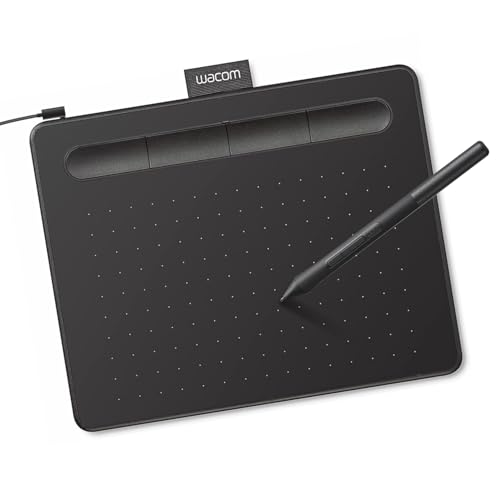
| Wacom Intuos Small | First retouching tablet with a compact footprint | Battery-free pen and 4 ExpressKeys |
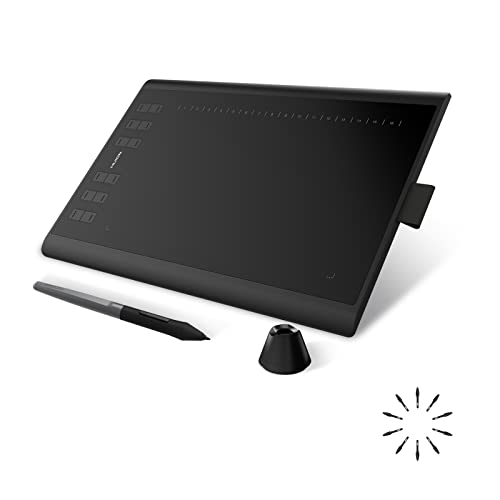
| HUION Inspiroy H1060P | Roomy surface for full-arm strokes | 10 x 6.25 in area with 12+16 hot keys |
| HUION Inspiroy H640P | Small desks and travel setups | 6×4 inch area with tilt support |
| PicassoTab 10″ Standalone | Sketching away from a computer | Runs without a computer, 4096 level pen |
| XPPen Deco 01 V3 | Beginners who want many shortcuts | 16K battery-free stylus and 8 keys |
| Frunsi RubensTab T11 Pro | Casual standalone drawing | 10.1 inch FHD display, apps pre-installed |
| UGEE 15.4 inch pen display | Drawing directly on the image | Full-laminated screen, 143% sRGB |
How to Choose
Pen tablet or pen display
A pen tablet is a blank pad: you look at your monitor while your hand moves on the desk. It takes a day or two to build the coordination, but it is compact and the cheapest route. A pen display, like the UGEE here, puts a screen under the pen so you work on the picture itself. That is more natural for spot healing and local adjustments, but it adds a cable, a stand decision and a bigger desk footprint. If you already own a color-accurate monitor, a plain pad is often enough.
Active area and your monitor
The working surface maps to your screen, so a very small pad on a large monitor means every millimeter of hand motion moves the cursor a long way, which hurts precision on fine masks. Sizes in this group run from 6×4 inches to about 10 inches wide. For retouching on a 24 inch monitor or larger, the 10 inch class is the more comfortable choice; the small pad suits a laptop and a tight desk.
Pressure levels and pen type
Pressure levels describe how finely the pen separates a light touch from a firm one. Listings here range from 4096 to 8192 and 16K. For photo work, the difference between 8192 and 16K is hard to feel on a layer mask, so treat anything in that range as ample. What matters more is a battery-free pen that never needs charging mid-edit, and tilt support if you like shaping brush strokes with the angle of the pen.
Computer connection and shortcut keys
Retouching tools live in desktop software, so confirm the tablet connects to your Mac or Windows machine. Standalone Android tablets run their own apps and are a different product category. Shortcut keys are worth using for undo, brush size and panning; a few well-placed keys beat a dozen you never memorize. Ignore bundled extras such as bonus accessories, and be wary of budget models that cut corners on driver support and screen coating.
The 7 Best Options
Wacom Intuos Small
A wired pad that lists a battery-free pen, software and 4 ExpressKeys, with support for Mac, Windows and Chromebook. It suits someone replacing a mouse for the first time who wants a small desk footprint and fewer decisions to make.
- Strength: battery-free pen means nothing to charge before an edit session.
- Strength: four programmable keys cover undo, brush size and a few repeated actions.
- Trade-off: the small size can feel cramped on a large monitor.
Its included software and Chromebook support also make it flexible for people who edit on more than one machine. Skip it if you retouch on a wide display and prefer sweeping strokes, or if you want a screen beneath the pen.
HUION Inspiroy H1060P
The listing gives a 10 x 6.25 inch surface, 8192 pressure levels, a battery-free stylus and a generous 12+16 hot keys, and it connects to Mac, Windows PC and Android. This is the pick for editors who want a larger canvas and plenty of shortcuts under the left hand.
- Strength: the wide area keeps cursor movement precise on bigger monitors.
- Strength: the large key count lets you map a full retouching workflow.
- Trade-off: it takes more desk space, and many keys take time to learn.
Android support listed alongside Mac and Windows means the same tablet can also serve other devices. Skip it if your desk is tight or you only want a handful of controls.
HUION Inspiroy H640P
A 6×4 inch tablet with 8192 pen pressure, a battery-free stylus, tilt and 6 hot keys, compatible with Mac, PC and Android. It is aimed at beginners, which makes it a sensible entry for a photographer who just wants to test whether a pen helps.
- Strength: small enough to slide beside a laptop or travel in a bag.
- Strength: tilt support adds natural brush shaping.
- Trade-off: the compact area limits long, smooth strokes on a large screen.
It is also positioned for writing, teaching and design, so it can double as a general pen input beyond photo work. Skip it if you edit on a big monitor all day.
PicassoTab 10″ Standalone
This is a standalone tablet that the listing says needs no computer, with a paper-like laminated screen, 4096 level pen, octa-core processor and 6GB+128GB of memory and storage. It targets beginners who want to draw on the couch, not photographers who need a pen for desktop retouching software.
- Strength: works without a computer and includes tutorials for newcomers.
- Strength: paper-like surface gives the pen some drag.
- Trade-off: it is not described as connecting to a computer, so it will not drive desktop editing software.
The six bonus items and beginner tutorials are about learning to draw, which is a different goal than precise local adjustments. Skip it if your goal is masking in Lightroom or Photoshop on a PC or Mac.
XPPen Deco 01 V3
A 10×6 inch pad with a 16K battery-free stylus and 8 keys, working with Mac, PC, Android and Chromebook, and marketed as designed for beginners. It balances size and key count well for a first serious retouching tablet.
- Strength: 10 inch width suits mid-sized monitors.
- Strength: eight keys give room for brush and zoom shortcuts.
- Trade-off: a drawing pad with no screen still needs eye-hand coordination practice.
The listing also mentions teaching and OSU use, so it is built as a general-purpose pen input as well as a retouching aid. Skip it if you want to draw directly on the picture.
Frunsi RubensTab T11 Pro
Another standalone model, with a 10.1 inch FHD display, octa-core CPU and drawing apps pre-installed, plus tutorials aimed at beginners, artists and students. It shines for sketching away from a desk.
- Strength: no computer needed, so it is ready to use out of the box.
- Strength: the screen is a convenient size for portable drawing.
- Trade-off: the listing frames it around its own drawing apps, not desktop photo editors.
Buyers who want a sketchbook replacement may like it, but retouching RAW files is outside what the listing describes. Skip it if you need Lightroom-style local adjustments with full-size RAW files.
UGEE 15.4 inch pen display
The only model here with a screen meant for a computer: a 15.4 inch laminated display listing 143% sRGB, 8+1 hot keys and a 16K battery-free stylus, for PC, Windows, Mac and Android. It lets you stroke directly onto the portrait.
- Strength: full-laminated screen reduces the gap between pen tip and image.
- Strength: wide color coverage helps judge skin tones while you work.
- Trade-off: it is bulkier and needs more cables and desk room than a pad.
The 8+1 hot keys leave room for shortcuts like undo, brush size and zoom without reaching for the keyboard. Skip it if budget is tight or you already own a monitor you trust for color.
Which One Fits Your Situation
You edit portraits and want the most natural feel
The UGEE 15.4 inch pen display is the closest match, since you draw on the image and use the hot keys for brush size and undo while the screen shows your skin-tone work.
You are on a laptop with a small desk
The HUION Inspiroy H640P or the Wacom Intuos Small both fit beside a laptop, and each gives a battery-free pen so there is nothing to charge.
You edit on a big monitor and want shortcuts
The HUION Inspiroy H1060P or the XPPen Deco 01 V3 offer the wider 10 inch class surface with many keys, which keeps cursor travel precise.
Common Mistakes
- Buying a standalone tablet and expecting it to run desktop editing software.
- Choosing a pad far smaller than your monitor, which makes fine masks jittery.
- Paying extra for pressure levels beyond what a layer mask can show.
- Skipping the driver install and wondering why pressure does nothing.
- Giving up after an hour; hand-eye coordination with a pad needs a few sessions.
Related guides
- How To Use A Tripod Properly For Sharper Photos
- How To Take Sharp Handheld Photos In Low Light
- How To Edit Photos In Lightroom As A Beginner
Frequently Asked Questions
Do I need a drawing tablet for photo retouching?
No, but it speeds up masks, dodging and burning and healing work. A pen reads pressure, so strokes feel smoother than they do with a mouse.
Is a bigger tablet always better?
Not always. Match the active area to your monitor and desk; a 10 inch class pad suits most mid-sized screens, while small pads work well on laptops.
Are standalone drawing tablets good for retouching?
They are built for sketching in their own apps. For Lightroom or Photoshop on a computer, choose a model whose listing says it connects to Mac or Windows.
Does the pen need charging?
The models here list battery-free pens or stylus, so they should not need a battery, which keeps long edit sessions uninterrupted.
More from Amazon
Programs that pair well with the guide above. Offers and eligibility are set by Amazon and may change.
Free shipping on eligible items, Prime Video and more. Eligible new members can start with a free trial.
Start a Prime free trialAudiobooks and podcasts to listen to on the go. Eligible new members can start with a free trial.
Try Audible freeAd-free music streaming. Eligible new subscribers can start with a free trial.
Try Music Unlimited freeA free business account with business pricing and bulk-buying tools for work, shop or home office.
Create a business accountAs an Amazon Associate we earn from qualifying purchases.