Key takeaways
- IPS (including Nano IPS, Fast IPS, IPS Black): Widest viewing angles, most accurate color out of the box, and the fastest response times for work-and-gaming hybrids. Contrast is typically 1000:1 to 2000:1, so blacks look gray in a dark room. Best for office work, design, and general gaming.
- VA: Contrast of 2500:1 to 4000:1 produces deeper blacks and less glow for movies and atmospheric games. Viewing angles are narrower and some VA panels show black smear in dark transitions. Curved 27-inch VA models help with edge uniformity at close desk depths.
- OLED (QD-OLED, WOLED): Per-pixel dimming gives near-infinite contrast, instant response (0.03ms), and superb HDR. Risk of image retention with static desktop elements and higher cost remain. Best for dedicated gaming and HDR video if you vary content and enable pixel-care features.
The best 27 inch monitors reviews for 2026 consistently point to three trade-offs that should drive your choice: 1440p at 144Hz or higher is the sweet spot for most desks and mid-range GPUs, 4K makes sense only if you have the GPU power and sit close enough to see the pixels, and IPS remains best for color work while VA and OLED win for contrast in gaming and movies.
Our top picks


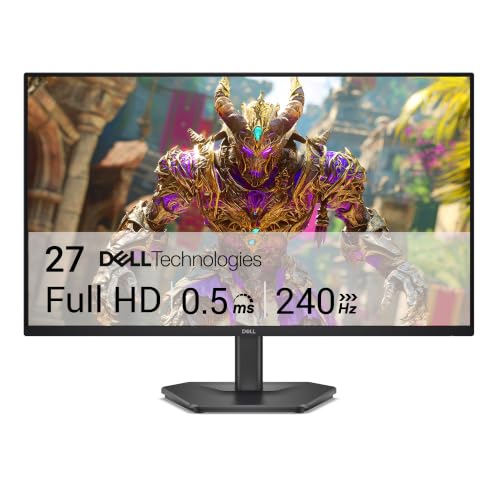

As an Amazon Associate we earn from qualifying purchases at no extra cost to you. Ratings are shown as listed on Amazon.
How Panel, Resolution, and Refresh Rate Interact at 27 Inches
At 27 inches, pixel density and viewing distance change how specs feel in daily use. A 27-inch 1080p panel is about 81 PPI, which looks visibly soft at a typical 24-30 inch viewing distance. 1440p jumps to 108 PPI and looks sharp without scaling, while 4K hits 163 PPI and requires 125-150% scaling in Windows or macOS to keep text readable. That scaling negates some of the extra desktop space you expect from 4K unless you need it for photo, video, or CAD detail.
Refresh rate is equally distance-independent but GPU-dependent. Moving from 60Hz to 144Hz cuts motion blur and input latency noticeably even outside games, while the jump from 144Hz to 240Hz is most valuable for competitive shooters. Higher refresh rates also demand more frames per second to be useful, which is where your graphics card becomes the limiter.
Panel Types Compared
- IPS (including Nano IPS, Fast IPS, IPS Black): Widest viewing angles, most accurate color out of the box, and the fastest response times for work-and-gaming hybrids. Contrast is typically 1000:1 to 2000:1, so blacks look gray in a dark room. Best for office work, design, and general gaming.
- VA: Contrast of 2500:1 to 4000:1 produces deeper blacks and less glow for movies and atmospheric games. Viewing angles are narrower and some VA panels show black smear in dark transitions. Curved 27-inch VA models help with edge uniformity at close desk depths.
- OLED (QD-OLED, WOLED): Per-pixel dimming gives near-infinite contrast, instant response (0.03ms), and superb HDR. Risk of image retention with static desktop elements and higher cost remain. Best for dedicated gaming and HDR video if you vary content and enable pixel-care features.
Spec Comparison: Real 27-Inch Models You Can Buy in 2026
This table uses widely available models to show concrete differences, not to declare one overall winner. Use it to match specs to your GPU and workflow.
| Model (Type) | Resolution / PPI | Refresh / Response | Color / Contrast | Connectivity | Stand & Power |
|---|---|---|---|---|---|
| Dell UltraSharp U2723QE (IPS Black) | 3840×2160 (4K) / 163 PPI | 60Hz / 8ms GtG | 98% DCI-P3, 2000:1 contrast, 400 nits | HDMI 2.0, DisplayPort 1.4, USB-C 90W PD, USB hub | Height/tilt/swivel/pivot, 31.5W typical |
| LG UltraGear 27GP850-B (Nano IPS) | 2560×1440 (QHD) / 109 PPI | 165Hz (180Hz OC) / 1ms GtG | 98% DCI-P3, 1000:1 contrast, 350 nits, HDR10 | HDMI 2.0 x2, DisplayPort 1.4, 3.5mm out | Height/tilt/pivot, 48W typical |
| ASUS ROG Swift OLED PG27AQDP (WOLED) | 2560×1440 (QHD) / 109 PPI | 480Hz / 0.03ms GtG | 99% DCI-P3, 1,500,000:1 contrast, 1300 nits peak HDR | HDMI 2.1 x2, DisplayPort 1.4, USB hub | Height/tilt/swivel, 38W typical, pixel refresh |
| Samsung Odyssey G7 S28AG70 / G70A (IPS) | 3840×2160 (4K) / 163 PPI | 144Hz / 1ms GtG | 95% DCI-P3, 1000:1 contrast, 300 nits, HDR400 | HDMI 2.1, DisplayPort 1.4, USB 3.0 | Tilt/swivel/height, 45W typical |
| BenQ PD2705Q (IPS) | 2560×1440 (QHD) / 109 PPI | 60Hz / 5ms GtG | 100% sRGB/Rec.709, 1000:1, factory calibrated Delta E <3 | HDMI 1.4, DisplayPort 1.4, USB-C 65W PD | Height/tilt/swivel/pivot, KVM switch |
| Gigabyte M27Q Rev 2.0 (IPS) | 2560×1440 (QHD) / 109 PPI | 170Hz / 1ms MPRT | 92% DCI-P3, 1000:1, 400 nits | HDMI 2.0, DisplayPort 1.4, USB-C 10W, KVM | Height/tilt, 28W typical |
General market ranges in 2026: basic 27-inch 1080p 75-100Hz office panels sit in the budget tier, 1440p 144-180Hz IPS models occupy the mid-range, and 4K 144Hz or 1440p OLED 240Hz+ models command the premium tier.
Decision Matrix: Match Your Desk, GPU, and Use Case
Rather than ranking by price alone, map your situation to the right spec balance:
| Your Situation | Best Fit Resolution & Refresh | Recommended Panel | Why |
|---|---|---|---|
| Shallow desk (20-26 inches eye-to-screen), mixed work and school, integrated graphics or entry GPU like RTX 3050 / RX 6600 | 2560×1440 at 75-100Hz | IPS | Text stays sharp without heavy scaling and GPU can drive desktop and light games at native resolution. |
| Standard desk (27-32 inches), office work, color accuracy needed, no gaming priority | 2560×1440 or 3840×2160 at 60Hz | IPS or IPS Black | Factory calibration, USB-C power delivery for laptops, and height-adjustable stand matter more than high refresh. |
| Mid-range gaming PC (RTX 4060 Ti / RX 7700 XT or better), you play shooters and RPGs | 2560×1440 at 144-180Hz | Fast IPS | GPU can sustain 100+ fps at QHD in most titles; you get smooth motion without the steep cost of 4K 144Hz. |
| High-end GPU (RTX 4070 Super / RX 7800 XT and above), competitive esports | 2560×1440 at 240-480Hz | OLED or Fast IPS | Extra refresh reduces motion blur and system latency when the GPU can push 200+ fps. |
| Creative pro (photo/video) with calibrated workflow, deeper desk (30+ inches) | 3840×2160 at 60-144Hz | IPS with 98%+ DCI-P3, hardware calibration | 4K gives editing real estate and pixel-level detail; 27-inch 4K needs scaling but preserves fine detail. |
| Dark room movie watching, single-player gaming, contrast priority | 2560×1440 at 165-240Hz curved | VA or QD-OLED | Higher native contrast hides IPS glow; OLED gives best HDR but requires burn-in mitigation for static taskbars. |
Worked Calculation: Can Your GPU Actually Drive It?
Use pixel count to estimate load before buying. 1920×1080 = 2.07 million pixels, 2560×1440 = 3.69 million pixels, 3840×2160 = 8.29 million pixels. 4K has 2.25x the pixels of QHD and 4x the pixels of 1080p, so frame rates scale roughly inversely if CPU-limited conditions are equal.
Example: If your system averages 110 fps in a given game at 1440p with your preferred settings, expect about 48-55 fps at 4K on the same settings (110 / 2.25). To hold 144 fps at 4K you would need either DLSS/FSR in Performance/Balanced mode, lower settings, or a significantly more powerful GPU. If you mainly work in spreadsheets, browsers, and Lightroom, the GPU math matters less than having USB-C with 65-90W power delivery to charge your laptop over one cable.
Desk depth calculation also helps: At 24 inches viewing distance, a 27-inch 16:9 screen fills about 53 degrees of your horizontal field of view. At 32 inches, that drops to about 41 degrees. If you sit closer than 24 inches due to a shallow desk, consider a flat IPS rather than a steep 1000R curve, which can distort straight lines in design work at close range.
Buying Criteria That Matter More Than Marketing
Resolution and Scaling
For Windows, 1440p at 27 inches runs well at 100% scaling. 4K needs 125% or 150% and some legacy apps still blur. macOS handles 4K scaling better but renders UI larger, so you effectively get space similar to 2560×1440 unless you use the More Space option. Check your OS before assuming 4K equals more windows side-by-side.
Refresh Rate, Adaptive Sync, and Ports
Look for FreeSync/G-Sync Compatible support over HDMI and DisplayPort. For 4K 144Hz you need HDMI 2.1 or DisplayPort 1.4 with Display Stream Compression. Many budget 4K 60Hz monitors only offer HDMI 2.0, which caps 4K at 60Hz. For USB-C laptops, a single USB-C that carries video, data, and 65W+ charging cleans up cable clutter more than any RGB feature.
Color, Brightness, and HDR Reality
HDR400 on IPS is mostly a brightness bump; it does not dim locally enough for true HDR. Meaningful HDR at 27 inches comes from OLED or IPS with full-array local dimming (rare under premium pricing). For office and SDR gaming, prioritize sRGB and DCI-P3 coverage and a Delta E under 2 rather than HDR certification alone. Matte coating reduces reflections in bright rooms; glossy OLED looks punchier but needs light control.
Ergonomics and Desk Fit
A stand that adjusts 110-130mm in height, tilts -5 to +20 degrees, and pivots to portrait helps long work sessions. Budget models often cut height adjustment to 100mm or tilt-only, forcing you to add a monitor arm. Check depth of the stand foot as well; large V-shaped feet can eat 10-12 inches of a small desk. VESA 100x100mm mounting keeps options open if you later switch to an arm.
Durability and Ownership Realities
Backlights dim slowly; most IPS panels lose 10-15% brightness after 20,000-30,000 hours, which is 5-7 years at 8 hours per day. What wears first is usually not the panel but the stand hinge, USB-C port from repeated plugging, and the anti-glare coating if cleaned incorrectly.
- Cleaning: Power off and dust with microfiber. For fingerprints, lightly dampen microfiber with distilled water only. Avoid ammonia-based cleaners, paper towels, and pressing on the panel which can leave pressure marks on IPS.
- OLED care: Enable pixel shift, auto-hide taskbar and desktop icons, and run the panel’s pixel refresh cycle when prompted. Avoid leaving static bright logos at max brightness for hours.
- Common mistakes: Running 4K over an old HDMI cable and assuming the monitor is faulty when limited to 30Hz, setting overdrive to the maximum and getting inverse ghosting, and leaving sharpness at 100% which adds halos to text.
- Consumables and extras: No bulbs to replace, but budget for a DisplayPort 1.4 or Ultra High Speed HDMI cable if not included, and a calibrator like the Calibrite ColorChecker if color-critical work demands it. Built-in speakers on most 27-inch monitors are 2W and thin; plan for external speakers or headphones.
Picks by Situation, Not Just Price
Best for Most People: 27-Inch 1440p 165-180Hz IPS
Models like the LG 27GP850-B and Gigabyte M27Q deliver the best price-to-performance balance for mixed work and gaming. Text is crisp without scaling, color is good for content creation, and most GPUs from the last three years can drive the refresh rate in esports and the 60-90 fps range in AAA titles.
Best for Color Work and Mac/PC Office Setups: 27-Inch 4K 60Hz IPS Black
The Dell U2723QE and similar UltraSharp and BenQ PD-series monitors offer USB-C with 65-90W charging, excellent factory calibration, and high PPI for small fonts. Paying for higher refresh here rarely helps if your day is Figma, Excel, and video calls.
Best for Competitive Gaming: 27-Inch 1440p 240Hz+ OLED
QD-OLED and WOLED options such as the ASUS PG27AQDP and Samsung Odyssey OLED G8 give instant response and near-zero motion blur. Choose this only if your GPU can exceed 200 fps in your main games and you are comfortable managing OLED care routines.
Best Alternative for Dark-Room Gaming and Movies: 27-Inch Curved VA 165Hz+
If OLED is outside your budget but contrast matters more than perfect color angle, a curved VA with 3000:1 contrast and 1500R curvature provides immersive blacks at a mid-range price. Verify that its overdrive is tuned well to avoid dark smearing.
Setup Steps That Prevent Returns
- Set the correct refresh rate in OS settings after connecting; Windows defaults to 60Hz even on 144Hz panels.
- Enable adaptive sync in both the monitor menu and GPU control panel to avoid tearing without vsync lag.
- For 4K, set scaling to 125% or 150% first, then adjust ClearType. For 1440p, keep 100% unless you need larger text.
- Calibrate brightness to 120-150 nits for office use (often 30-50% slider) rather than 100% which causes eye strain and washes out contrast.
- Update monitor firmware via USB if the manufacturer offers it; several 2024-2025 models fixed VRR flicker and improved overdrive this way.
FAQ
Is 27 inches too big for 1080p?
For office work at typical desk depths, yes. Text and window edges look soft compared to 1440p, and you will see individual pixels at 24-28 inches. 1080p at 27 inches only makes sense for budget builds where GPU power is very limited and you prioritize high refresh over sharpness.
Should I choose 4K or 1440p for gaming at 27 inches?
Choose 1440p unless you own a high-end GPU and prefer sharpness over high frame rates. Most best 27 inch monitors reviews note that 1440p lets mid-range cards stay above 100 fps, while 4K often requires upscaling to stay smooth. If you play cinematic single-player games and do creative work, 4K is justified.
Do I need HDMI 2.1?
Only if you need 4K above 60Hz or 1440p above 144Hz over HDMI, or you connect a console. For PC, DisplayPort 1.4 covers 1440p 165Hz and 4K 144Hz with DSC. Check that your cable is certified for the bandwidth you need.