Key takeaways
- Two computers, one 4K monitor: Choose a 2-port DisplayPort or HDMI KVM rated for 4K at 60Hz, with USB 3.0 if you regularly move files or use a webcam.
- Two computers, two monitors: Choose a dual-monitor KVM with two matching video inputs per computer. A single-monitor KVM will not create a dual-screen workspace.
- High-refresh gaming and work: Look for DisplayPort 1.4, HDMI 2.1, or a product explicitly rated for 1440p at 144Hz or 4K at 120Hz. Many inexpensive KVMs stop at 4K/60Hz.
- Desktop plus laptop: A USB-C KVM or a conventional KVM paired with a USB-C dock can be convenient, but check whether USB-C carries video, charging, and data simultaneously.
- Several computers and occasional switching: A 4-port KVM from brands such as TESmart, StarTech.com, Cable Matters, or UGREEN can reduce cable clutter, provided its video standard matches your displays.
The best KVM switches for multi-computer setups are the ones that match your exact monitor resolution, refresh rate, USB needs, and switching habits—not simply the model with the most ports.
Quick picks by setup
- Two computers, one 4K monitor: Choose a 2-port DisplayPort or HDMI KVM rated for 4K at 60Hz, with USB 3.0 if you regularly move files or use a webcam.
- Two computers, two monitors: Choose a dual-monitor KVM with two matching video inputs per computer. A single-monitor KVM will not create a dual-screen workspace.
- High-refresh gaming and work: Look for DisplayPort 1.4, HDMI 2.1, or a product explicitly rated for 1440p at 144Hz or 4K at 120Hz. Many inexpensive KVMs stop at 4K/60Hz.
- Desktop plus laptop: A USB-C KVM or a conventional KVM paired with a USB-C dock can be convenient, but check whether USB-C carries video, charging, and data simultaneously.
- Several computers and occasional switching: A 4-port KVM from brands such as TESmart, StarTech.com, Cable Matters, or UGREEN can reduce cable clutter, provided its video standard matches your displays.
What a KVM switch actually shares
KVM means keyboard, video, and mouse. A switch connects one set of peripherals to multiple computers and routes those connections to the computer you select. The video path determines image quality; the USB path determines whether your keyboard, mouse, storage, webcam, audio device, or printer works as expected.
Our top picks


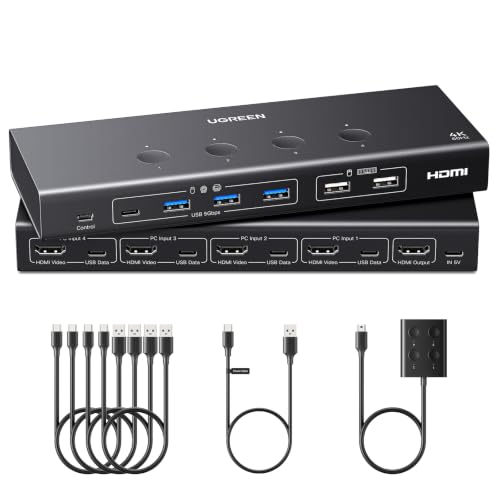

As an Amazon Associate we earn from qualifying purchases at no extra cost to you. Ratings are shown as listed on Amazon.
Some products are video switches with basic keyboard-and-mouse emulation. Others are full USB hubs. This distinction matters. A KVM with USB 2.0 is normally adequate for a keyboard, mouse, headset, and printer. USB 3.0 or USB 3.2 is preferable for external SSDs, webcams, card readers, and other high-bandwidth devices. The advertised USB speed applies to the shared connection, so it is divided among active devices.
Key specifications compared
| KVM type | Typical computer count | Common video limit | USB sharing | Best use |
|---|---|---|---|---|
| Basic HDMI 2-port | 2 | 4K at 60Hz | USB 2.0 | Office keyboard, mouse, and one monitor |
| DisplayPort 2-port | 2 | 4K at 60Hz; some models support 1440p at 144Hz | USB 2.0 or USB 3.x | Workstations using DisplayPort monitors |
| Dual-monitor KVM | 2 or 4 | Two displays, commonly 4K at 60Hz each | Usually USB 2.0 or USB 3.x | Two-screen productivity setups |
| High-refresh DisplayPort 1.4 | 2 | 1440p at 240Hz or 4K at 120Hz, depending on model | Often USB 3.x | Gaming and creative work |
| HDMI 2.1 KVM | 2 | 4K at 120Hz or higher, depending on bandwidth and features | USB 2.0 or USB 3.x | Modern gaming PCs and consoles |
| USB-C KVM or dock-style KVM | 2 | Varies widely; often one 4K display at 60Hz | USB-C data, video, and sometimes charging | Laptops with a single-cable desk connection |
These are product-category figures rather than a guarantee for every model. Always check whether a claimed resolution requires Display Stream Compression, whether HDR is supported, and whether the maximum refresh rate applies to one output or all outputs simultaneously.
Resolution, refresh rate, and cable requirements
Start with the most demanding computer. If one PC outputs 4K at 144Hz, a KVM rated only for 4K/60 cannot preserve that signal. You may have to lower the refresh rate every time you switch, which defeats the purpose of buying a high-performance display.
DisplayPort KVMs are often the safer choice for PC monitors, especially at high refresh rates. HDMI 2.1 is the better match for 4K/120Hz gaming equipment, but the entire chain must support it: computer or console, KVM, cable, and monitor. A cable cannot increase a KVM’s bandwidth.
Use short, certified cables where possible. For 4K/60, good-quality HDMI 2.0 or DisplayPort 1.2-class cables are generally sufficient. For 4K/120 or 1440p at very high refresh rates, use cables rated for HDMI 2.1 or DisplayPort 1.4, as appropriate. Long or poorly shielded cables can cause black screens, flickering, intermittent USB disconnects, or a refresh-rate fallback.
Switching methods: buttons, hotkeys, and remote controls
- Front-panel button: Reliable and easy to understand, but inconvenient if the KVM is mounted under a desk.
- Keyboard hotkey: Fast once configured. Check the exact sequence; common combinations use a double press of a modifier key followed by a number.
- Wired remote: Useful when the switch is hidden or computers are in a rack. It avoids aiming problems and usually needs no batteries.
- Infrared remote: Convenient for a desk or media setup, but line-of-sight can be blocked.
- Automatic switching: Helpful for occasional use, but it can unexpectedly move control when a computer wakes, reboots, or changes display state. Disable it if uninterrupted control matters.
For frequent switching, prioritize a hotkey or wired remote and confirm that the chosen method does not interfere with keyboard shortcuts used by your operating system or applications.
Decision matrix: which KVM fits your situation?
| Your situation | Recommended specification | Why |
|---|---|---|
| Under about $70, one 1080p or 4K/60 display | 2-port HDMI or DisplayPort, USB 2.0 | Keeps cost low without paying for unused bandwidth |
| Daily switching between work and personal PCs | 2-port KVM, USB 3.x, hotkey or remote, EDID emulation | Faster peripheral access and fewer monitor renegotiation problems |
| Two monitors used on both computers | Dual-monitor KVM with two video inputs per computer | Preserves the complete desktop instead of mirroring one screen |
| 1440p at 165Hz or 4K at 120Hz | DisplayPort 1.4 or HDMI 2.1, explicitly rated for your mode | Prevents refresh-rate and HDR compromises |
| Several computers in an office | 4-port KVM, USB 3.x, front button plus hotkey | Handles more systems while remaining manageable |
| Limited desk space and a USB-C laptop | USB-C KVM or dock-style KVM with power delivery | Reduces connections, but requires careful compatibility checking |
Important features listings often fail to explain
EDID emulation
EDID is the display information that tells a computer the monitor’s resolution and capabilities. A KVM with EDID emulation can make the computer believe the monitor remains connected while you control another system. This helps prevent windows moving between screens, icons changing position, and applications resizing after every switch.
Power and USB limits
Some KVMs need a separate power adapter, especially when they include USB 3.x, multiple monitors, or signal amplification. Bus-powered models are tidier but may struggle with power-hungry USB devices. Do not assume a front USB port can reliably run an external hard drive, webcam, and headset at once.
Audio and microphone routing
Audio may travel through HDMI or DisplayPort, or through separate 3.5mm ports. A KVM with only video and USB can still share a USB headset, but analog speakers and microphones require the appropriate ports. Confirm whether the microphone follows the selected computer; some products share output audio but not input audio.
Setup method that avoids common problems
- Write down the target mode: For example, 2560 × 1440 at 165Hz with HDR, plus a webcam and USB microphone.
- Check the KVM’s full specification: Confirm resolution, refresh rate, HDR, adaptive sync, number of monitors, and USB speed together—not in separate marketing bullets.
- Connect power first: Use the included adapter when supplied. This gives the KVM stable power for signal handling and USB devices.
- Connect the monitor to the KVM’s output: Then connect identical video paths from each computer where possible. For example, use DisplayPort for both systems rather than mixing standards through adapters.
- Connect the USB upstream cables: Each computer generally needs its own USB connection to the KVM. Without it, video may work while the keyboard and mouse do not.
- Test one computer at a time: Set the desired resolution and refresh rate before adding webcams, storage, or other USB devices.
- Enable EDID or display emulation if available: This is especially useful for computers that sleep, wake, or run several monitors.
A useful troubleshooting calculation is to compare total cable length with signal demands. If a monitor sits 2 meters from the KVM and a computer is 3 meters away, the signal path is already about 5 meters before adapters or extensions. At 4K/120Hz, replacing that path with shorter certified cables may solve a problem that changing software settings will not.
Ownership realities and common mistakes
The first things that usually cause trouble are cables, USB connectors, and power supplies—not the switching button itself. Repeatedly bending cables at the KVM can loosen connectors, while dust and desk debris can make USB plugs unreliable. Keep the switch ventilated, avoid hanging it by its cables, and label each computer-side lead.
Common mistakes include buying a dual-monitor KVM for two monitors but connecting only one video cable per computer, assuming USB 3.0 guarantees fast storage when several devices share the bus, and using HDMI adapters that reduce the output to an older standard. Another frequent issue is mixing a laptop dock with a KVM without checking whether the dock supports the required refresh rate.
For occasional office switching, a well-matched 2-port KVM in the general $40–$100 range is often sufficient. Dual-monitor, high-refresh, USB-C, and four-port models commonly cost roughly $100–$400 or more, depending on bandwidth and power-delivery features. Paying extra is worthwhile when it preserves your display mode and eliminates daily cable swapping; it is not worthwhile when your monitor is only 1080p/60Hz and your peripherals are basic.
Final recommendation
Choose the best KVM switch by working backward from the display mode you refuse to compromise. Then add the required number of computers and monitors, USB 2.0 or USB 3.x, your preferred switching method, and the correct cable standard. For most two-computer desks, a powered 2-port KVM with EDID emulation, USB 3.x, and an explicit 4K/60 or 1440p/high-refresh rating offers the best balance. If your setup uses 4K/120Hz, multiple monitors, or USB-C laptops, treat bandwidth and compatibility as the main purchase criteria rather than port count.